Getting started
Work through this page from top to bottom. A step that is not for everyone says under its heading who it is for, and you can skip it if that is not you. Where a step differs between the Mac and the iPhone, pick your device once and the rest of the page follows.
| You use | The steps you take before sorting |
|---|---|
| A Mac alone | Install, put your music in iCloud Drive if you plan to add an iPhone, and set up |
| An iPhone alone | Install, put your music in iCloud Drive and set up |
| A Mac and an iPhone | Install on both, put your music in iCloud Drive, set up one device and add the other |
If your library is in Rekordbox today, bring it in after those steps and before you sort or analyze anything. Everyone then sorts, makes playlists and analyzes, and DJs who play on CDJs finish by exporting a drive.
Install Proper
Section titled “Install Proper”Proper runs on a Mac with Apple silicon on macOS 15 or later, and on an iPhone with iOS 26 or later. To use both on one library, sign in to the same iCloud account on both, with iCloud Drive on.
- Download the Proper disk image (
.dmg). - Open it and drag Proper to Applications.
- Open Proper from Applications.
Install Proper on the iPhone. If your music is not in iCloud Drive yet, do the next step before you open it.
Put your music in iCloud Drive
Section titled “Put your music in iCloud Drive”Proper syncs your library, meaning your playlists, cues, beat grids, decisions and settings, through your own iCloud account, wherever your files are. It does not copy audio files. Those travel through iCloud Drive as ordinary files, so a track you file into a folder there reaches your other device too.
The iPhone reads music from iCloud Drive and from nowhere else, so this step is needed for the iPhone, alone or with a Mac. On a Mac alone it is up to you. Your folders can be anywhere on the Mac or on an external disk, but music already in iCloud Drive is ready the day you add an iPhone. Folders synced by another service, such as Dropbox, stay on the Mac, as iCloud sync explains.
Not everything has to move. A common setup keeps Downloads where it is, as the place new files arrive, and puts the folders you play from in iCloud Drive. Filing a track into one of them is what puts it on the iPhone.
- Check your iCloud storage plan. A large lossless library outgrows the 50 GB and 200 GB plans quickly.
- Move the music folder into iCloud Drive: in Finder on a Mac, with iCloud for Windows on a PC, or in the Files app on the phone. The files stay playable on the Mac while they upload.
- Keep the folders you play from downloaded, as below.
macOS and iOS free up space by sending iCloud Drive files back to iCloud. A track that is not downloaded cannot be analyzed, edited or exported until it downloads again, and offline it cannot download at all. Keep every folder you DJ from and the folders you sort new music into downloaded on each device. An archive can stay in iCloud.
In Finder, right-click each folder you play from and choose Keep Downloaded.
In the Files app, long-press each folder you play from and choose Keep Downloaded.
More in iCloud sync.
Set up Proper
Section titled “Set up Proper”Proper knows your music by folder. You tell it which folders hold your music, and each folder gets a mark: a letter you use later to file a track into it.
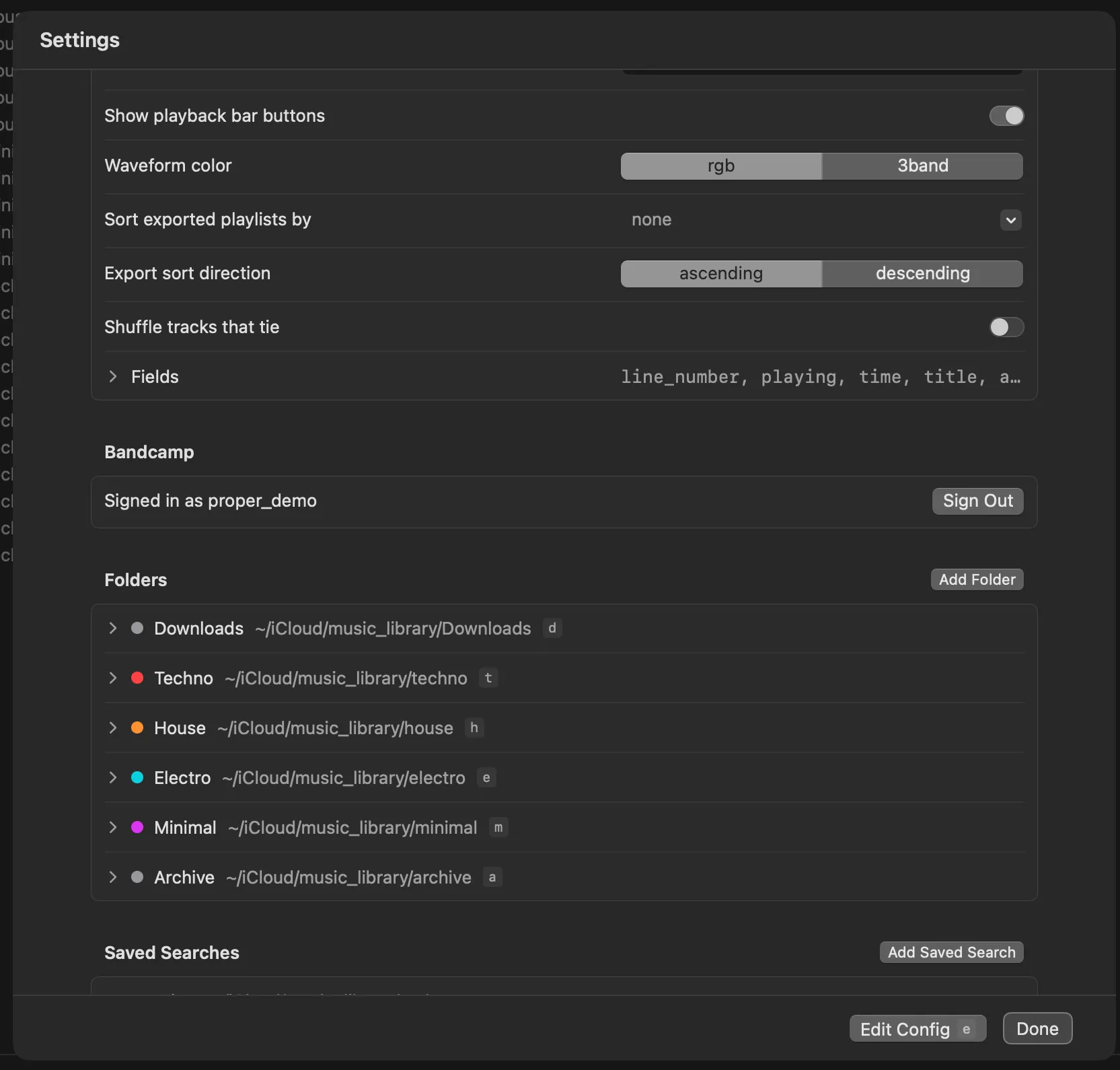
- Open Proper. A new library starts with three folders (Downloads, Music and Archive) and asks Where are you starting from? Either answer opens this page.
- Click the gear in the toolbar to open Settings.
- Under Folders, change the paths to where your music is, and add a folder for each place you sort music into. If you use the iPhone too, point each folder you play from at its place in iCloud Drive.
- Keep one folder, usually Downloads, as the staging folder where new music lands.
- Open Proper.
- When asked, pick the folder in iCloud Drive that holds your music. The top folder of your music is the usual choice, since one grant covers every folder beneath it. A folder outside iCloud Drive is refused.
- Proper reads the files in it and opens the library.
More in Marks and folders and Configuration.
Add your other device
Section titled “Add your other device”Once one device is set up, the other joins its library. The library arrives by itself, with its playlists, cues, grids and settings. The music files reach the other device only from iCloud Drive.
- Sign in to the same iCloud account on the other device, with iCloud Drive on.
- Install Proper there and open it. It waits for the library to arrive and opens it with its own settings.
- On the iPhone, pick your music folder in iCloud Drive when asked. On the Mac, check that each folder in Settings points at your music on that Mac.
- Keep the folders you play from downloaded on this device too, as in Put your music in iCloud Drive.
More in iCloud sync.
Bring in your Rekordbox library
Section titled “Bring in your Rekordbox library”Your playlists, hot cues, memory cues, loops and beat grids come across from Rekordbox’s XML export. Do this before you analyze tracks or export a drive. The import matches files already in your folders and copies nothing, so the music Rekordbox plays has to be in the folders you set up above.
- In Rekordbox, choose File > Export Collection in xml format. Save the file somewhere Proper can reach, such as iCloud Drive.
- Open Drives and Backups: Go > Drives and Backups… on the Mac, or the drive button in the drawer on the iPhone.
- Choose Import XML and pick the file.
- Read what Proper will bring in, then choose Import. It backs up the library first.
If you keep preparing cues in Rekordbox on the same Mac, Import Cues and Grids in Drives and Backups brings later cue and grid edits across without a new XML file. More in Rekordbox.
Sort your first tracks
Section titled “Sort your first tracks”This is the main thing Proper is for. You listen through a folder of new music and decide where each track goes. Nothing moves until you say so.
- Click the folder where your new music lands, in the sidebar.
- Double-click the first track to play it.
- For a track you want to keep, click Mark in the playback bar and pick its folder. The row takes the folder’s color.
- For a track you do not want, click Stage for Deletion in the playback bar. The row turns gray. Nothing is deleted yet.
- When you have been through the folder, open the … menu in the toolbar. Commit Moves moves every marked track to its folder, and Commit Deletions moves every staged track to the Trash.
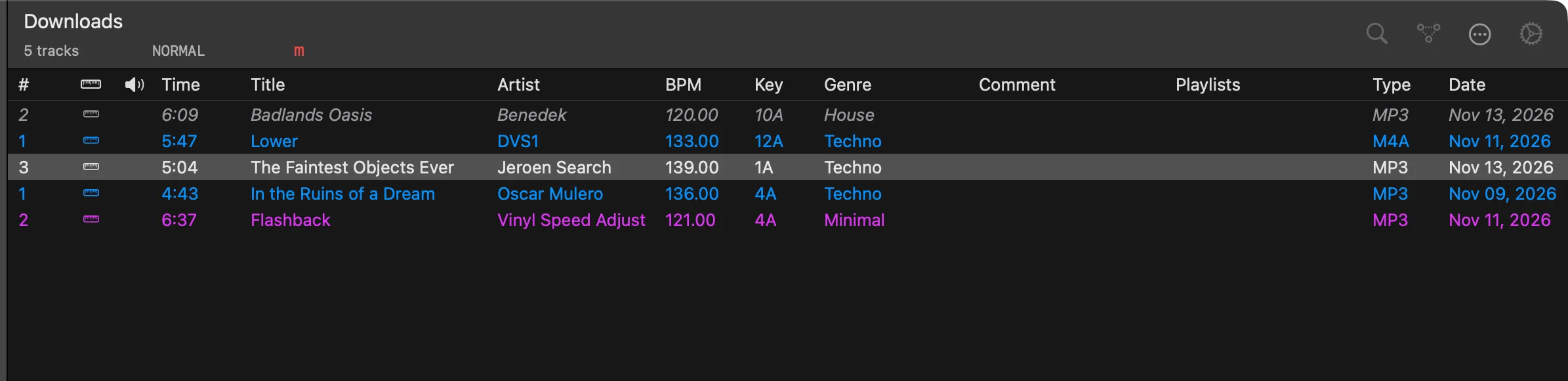
Every one of these has a key, and the keys are what make sorting fast:
| Key | What it does |
|---|---|
| Space | Play or pause the current track |
| n | Play the next track |
| m, a folder’s mark, Enter | Mark the current track for that folder |
| d | Stage the current track for deletion |
| f | Stage the playing track and skip to the next |
| Ctrl+M | Move the marked tracks |
| Shift+D | Delete the staged tracks |
| Cmd+Z | Undo |
- Tap the menu button at the top left to open the drawer, then tap the folder where your new music lands.
- Tap the first track to play it, then tap the pill at the bottom to open the player.
- For a track you want to keep, tap Mark in the player and pick its folder.
- For a track you do not want, tap Stage for Deletion. Nothing is deleted yet.
- When you have been through the folder, open the list’s … menu. Commit N Moves moves every marked track to its folder, and Commit N Deletions deletes every staged one.
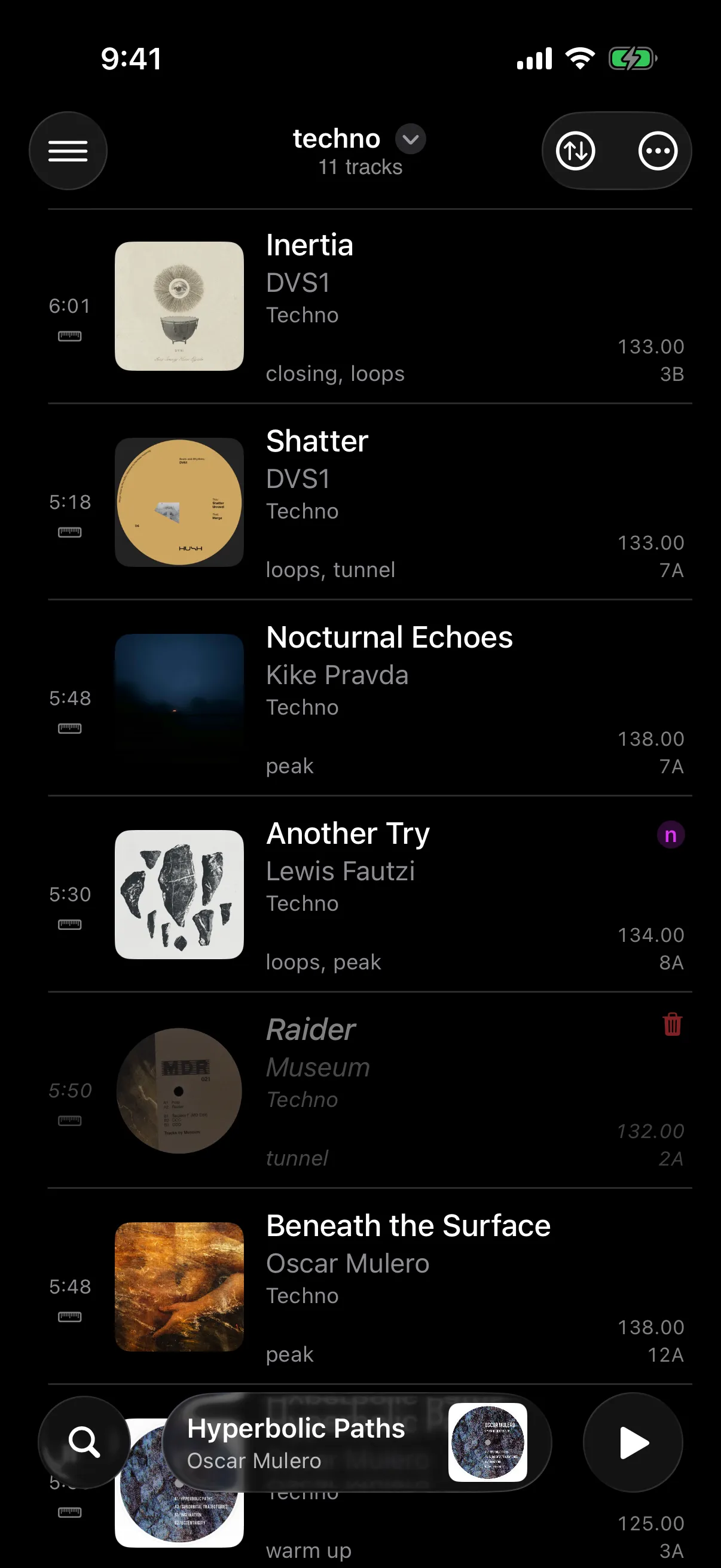
To undo a step, shake the phone or choose Undo in the … menu.
Your decisions stay on the tracks if you leave the folder or quit, and they sync to your other device. Deleted files go to the Trash, and undo does not bring them back.
More in Sorting files, and How the keys work if the keys are new to you.
Make a playlist
Section titled “Make a playlist”A track lives in one folder and can be in any number of playlists. A playlist changes no file.
- Choose Go > Playlist Manager.
- Make a new playlist and type its name. It gets a mark of its own.
- Back in the track list, click Add to Playlist in the playback bar and pick the playlist.
- Open the drawer and tap the Playlist Manager button.
- Tap + and type the name.
- In the player, tap Add to Playlist and pick the playlist.
More in Playlists.
Analyze your tracks
Section titled “Analyze your tracks”Analysis gives a track what a CDJ needs: a beat grid, a key and waveforms.
Open the … menu in the toolbar and choose Analyze N Tracks. It analyzes every track in the list that has no beat grid yet.
Open the list’s … menu and choose Analyze N Tracks. It analyzes every track in the list that has no beat grid yet.
Analysis runs in the background and syncs to your other device. Tracks that came from Rekordbox already have grids, so Analyze leaves them alone.
More in Analysis and Beat grids and cues.
Export to a CDJ
Section titled “Export to a CDJ”Proper writes your playlists to an external drive that a CDJ plays directly, with the audio, beat grids, cues and waveforms. Format the drive as FAT32 or exFAT first.
- Plug in the drive and choose Go > Drives and Backups….
- Click Sync to followed by the drive’s name.
- When the sync is done, eject the drive.
- Plug the drive into the phone.
- Open the drawer and tap the Drives and Backups button.
- Tap Choose a Drive and pick the drive.
- Tap Sync to followed by the drive’s name.
- Wait for Safe to unplug before you pull the drive out.
More in External drives for CDJs.
Where next
Section titled “Where next”Each part of Proper has one page in the reference manual with everything about it. The ones most people want next are Sorting files, Marks and folders, Playlists and iCloud sync. The Mac window and The iPhone app show what is on screen, and Common questions points you to the right page when something does not work.