Playlist Visualizer
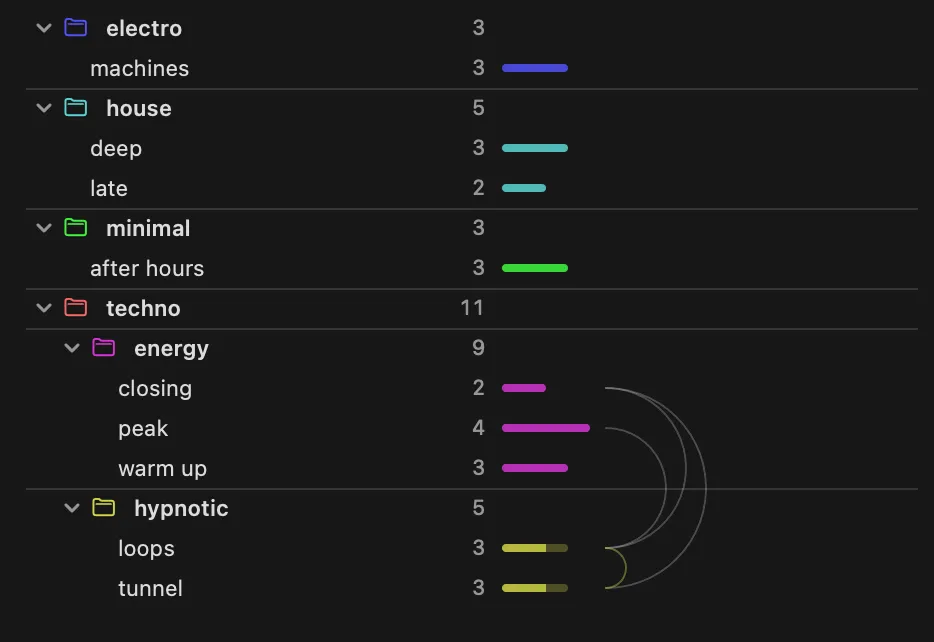
The Playlist Visualizer shows your playlists and playlist folders as rows in sidebar order, with arcs joining the playlists that share tracks. Use it to see which of your playlists overlap and by how much. Archived and History playlists are left out.
Open it
Section titled “Open it”Press Cmd+G, or click the connected-dots button in the toolbar. The visualizer opens as a pane on the right of the window, and Cmd+G again closes it. While the pane is open your keys still go to the track list. Drag the divider to make the pane wider or narrower.
Read it
Section titled “Read it”Each playlist row shows its name, its track count and a short bar in its folder’s color. The solid part of the bar is the tracks that are in no other playlist of that folder, and the faint part is the tracks it shares. A folder row shows its name and how many different tracks it holds.
An arc joins two rows that share tracks, and a thicker arc means more shared tracks. Hover over a row to light up its arcs. Click a folder’s chevron to fold it, and its arcs are added together on the folder row. A folded playlist group keeps the arcs of the group’s own playlist.
Follow what you are viewing
Section titled “Follow what you are viewing”The visualizer follows the playlist or folder you are viewing. It shows that row, the folders above it and every row that shares tracks with it, and folds the rest. Browse the sidebar and the visualizer moves with you.
Clicking a row in the visualizer does not open it. Open playlists and folders from the sidebar.
Pin it on one row
Section titled “Pin it on one row”To keep the view on one row while you browse elsewhere, pin it:
| Key or action | What it does |
|---|---|
| Right-click a row, Pin | Pin the visualizer on that row |
| “, a mark, Enter | Pin it on the playlist or playlist folder with that mark |
| Right-click the pinned row, Unpin | Follow what you are viewing again |
| “ ” | Unpin |
The pane also has an Unpin button while a pin is set. The pin stays while you close and reopen the visualizer, and is gone when you quit.
On the iPhone
Section titled “On the iPhone”Choose Playlist Visualizer in the list’s … menu to open it as a sheet. It draws the same rows and arcs as the Mac. Since the phone has no hover, long-press a row and tap Pin to pin the sheet on it. Tap Unpin to let it follow what you are viewing again.