Playlists
A playlist lives in your library. It groups tracks without moving or changing any file, syncs to your other device through iCloud, and goes to your external drives and Rekordbox when you export.
Make a playlist
Section titled “Make a playlist”You make playlists in the Playlist Manager, which shows every playlist and playlist folder as a tree.
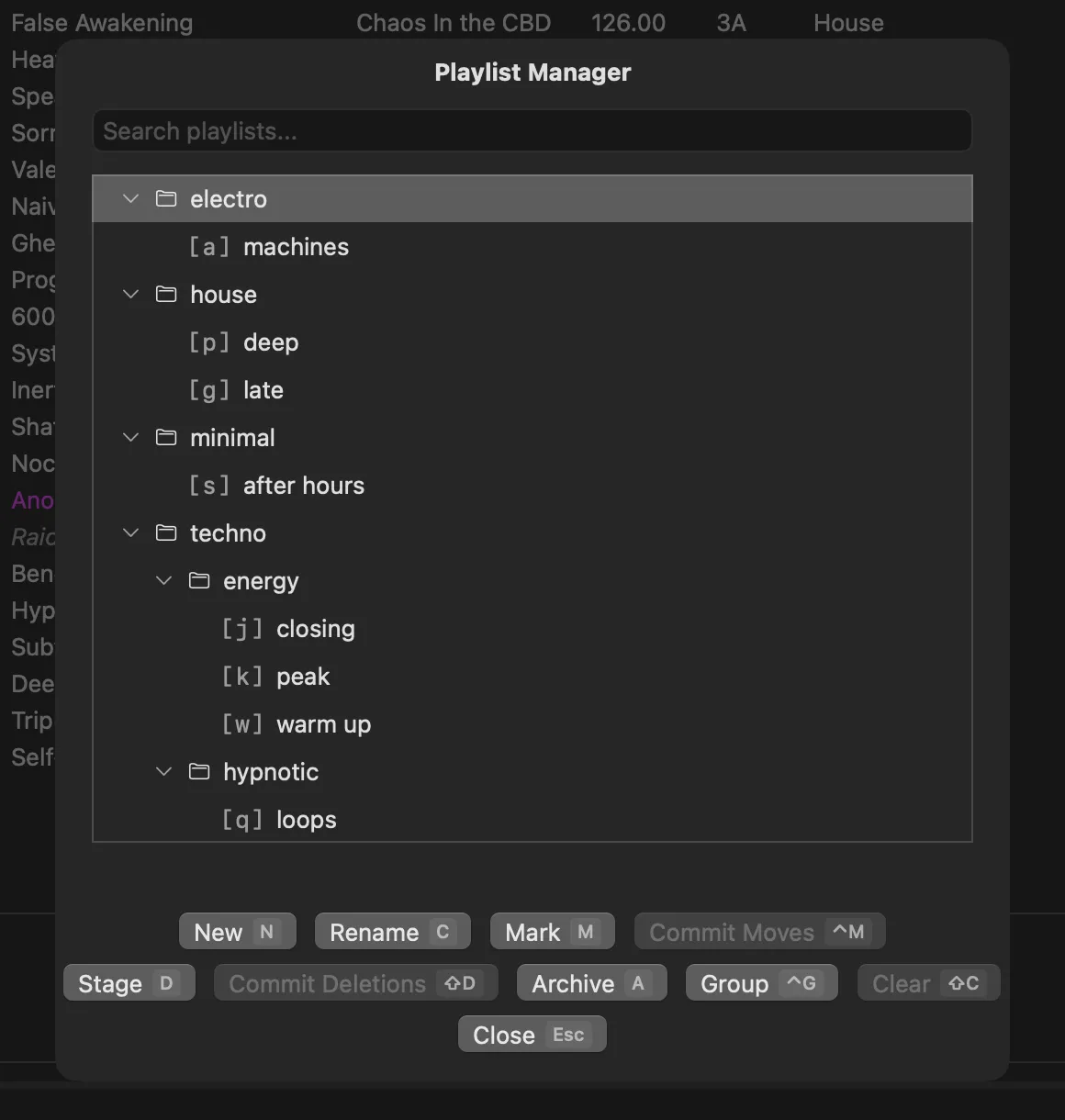
- Press Ctrl+P to open the Playlist Manager.
- Press n and pick the folder the playlist goes in.
- Type the name and press Enter.
- Open the sidebar drawer and tap the Playlist Manager button.
- Tap +, then tap the folder the playlist goes in, or Playlists for the top level.
- Type the name and tap Create.
A name must be unique within its folder, ignoring case.
The new playlist gets a mark, a letter or two that Proper gives out, which you type to add tracks and to open the playlist. Marks and folders explains how marks are given out and which places have none.
Add tracks
Section titled “Add tracks”Press m, type the playlist’s mark and press Enter. The current track, or every track in your selection, joins the playlist. A playlist’s mark only ever adds, so typing it on a track already in the playlist changes nothing. . repeats the last add on the next track.
By mouse or touch, choose Add to Playlist… in the row menu, which opens with a right-click on the Mac and a long-press on the iPhone.
On the iPhone the card lists the track’s playlists under Current, the three you added to last under Recent, and every playlist the track is not in under All, by folder, the recent ones included. Folders start closed and stay as you leave them on that iPhone, here and in the Quick Actions destination.
To open a playlist, press ’, type its mark and press Enter.
Once a track is in a playlist it stays there when you rename or move the playlist, or move, rename or retag the file.
Take tracks out
Section titled “Take tracks out”Press r in any view, highlight one of the track’s playlists and press Enter. The list shows the current track’s playlists, or with a selection open, the playlists every selected track is in. Cmd+Z puts the track back.
Inside a playlist you can also press d on each track you want gone, which stages it for removal from that playlist, then Shift+D to take every staged track out. The files stay where they are.
Put a playlist in order
Section titled “Put a playlist in order”A playlist keeps the order you added its tracks in. A CDJ shows it in that order when no sort is set on the player, and the Rekordbox export writes the same order.
| Key | What it does |
|---|---|
| Shift+J | Move the current track or selection one row down |
| Shift+K | Move it one row up |
You can also drag rows, and on the iPhone you long-press a row before dragging it. Reordering works only in a single playlist with no search and no sort. s x clears a sort. The new order is saved at once, and Cmd+Z undoes it.
Put playlists in folders
Section titled “Put playlists in folders”In the Playlist Manager, a name with a slash makes a folder. For example, techno/open makes the folder techno holding the playlist open, and a name ending in / makes a folder alone. To move a playlist into a folder, press m on it, pick the folder, then press Ctrl+M. On the iPhone, long-press it and choose Move….
Playlist folders hold playlists and other folders, nested as deep as you like. They exist only in the library and make no folder on disk. In the sidebar each top-level folder is a section you can expand and collapse.
A playlist folder has a mark too. ’, its mark and Enter opens every playlist beneath it as one list, each track shown once. On the iPhone, tap a folder’s name to open it and its chevron to expand it.
Make a folder a playlist group
Section titled “Make a folder a playlist group”A playlist group is a playlist folder that is also a playlist. The group’s playlist has the folder’s name, shows a stack icon, and holds every track from the playlists inside it, so narrow playlists still add up to one list you can open from the sidebar and export. Group a folder whose playlists belong together, and leave a folder plain when you would never play its playlists as one.
Say the group techno holds the playlists peak and warm up. peak holds tracks A and B, and warm up holds tracks B and C, so the group’s playlist, also called techno, holds A, B and C.
| What you do | What happens to the group’s playlist |
|---|---|
Add a track to peak |
The track joins techno too |
Take a track out of peak with r, or with d and Shift+D |
The track stays in techno |
Press r on techno while peak or warm up still holds the track |
Refused |
Stage the track with d in techno, then press Shift+D |
The track leaves techno, peak and warm up in one step, which Cmd+Z undoes |
| Group the folder again after ungrouping it | The group’s playlist is rebuilt from its playlists. Tracks you had added only to the group’s playlist do not come back |
In the sidebar, opening a playlist group opens its playlist. The group’s playlist exports like any other playlist. An archived playlist inside the group does not feed the group’s playlist.
To group or ungroup a folder on the Mac, highlight any row inside it in the Playlist Manager, press Ctrl+G, check the folder name in the question and press Enter. On the iPhone, long-press the folder and choose Group or Ungroup.
Put old sets away
Section titled “Put old sets away”To put away a set you have played and want to keep, archive it. Press a on it in the Playlist Manager, or swipe right on its row on the iPhone. a on a folder archives every playlist in it, and a again unarchives.
An archived playlist keeps its tracks and its place in the tree, and appears only in the Playlist Manager, dimmed. It is left out of:
- the sidebar
- external drive exports and the Rekordbox export
- the Playlists column
- the r list
- mark assignment
- the Playlist Visualizer
- the playlist of any group above it
Archiving a playlist is unrelated to an archive folder, a music folder for tracks you no longer play.
History playlists
Section titled “History playlists”A CDJ records each session on the external drive as a play history, and every drive sync erases those histories. A sync or import in Drives and Backups reads them first and asks which to keep, and each one you keep becomes a History playlist with its tracks in play order. External drives for CDJs has the details.
History playlists are withheld like archived ones. They are left out of the sidebar’s playlists, exports to external drives and Rekordbox, the Playlists column, the r list, mark assignment and the Playlist Visualizer. They appear in the History section at the bottom of the sidebar, newest first, and in the History folder of the Playlist Manager. They have no mark, so to jump to one, type part of its name after ’. Moving one out of History in the Playlist Manager makes it an ordinary playlist, and moving an ordinary playlist into History does the reverse.
The Playlist Manager
Section titled “The Playlist Manager”Ctrl+P opens the Playlist Manager. It shows every folder and playlist as a tree, archived playlists dimmed, and the History folder. Commands act on the highlighted row, and the motions of the track list move through the tree too. Renaming, moving and deleting playlists and folders cannot be undone.
| Key | What it does |
|---|---|
| j / k | Move down or up. A number first moves further |
| ] / [, Down / Up, Ctrl+N / Ctrl+P | Move down or up one row |
| gg / Shift+G | Go to the top or the bottom |
| Ctrl+D / Ctrl+U | Half a page down or up |
| h / l | Collapse or expand a folder. Left / Right do the same, and Enter toggles it |
| / | Search the tree |
| ’ | Jump to a playlist by name or mark |
| n | Create a playlist or folder |
| c | Rename |
| m, then a folder | Mark the row to move into that folder |
| Ctrl+M | Commit Moves, which moves everything marked |
| d | Stage for deletion, or unstage |
| Shift+D | Commit Deletions, which deletes everything staged |
| Shift+C or Ctrl+C | Clear every mark and staging in the manager |
| a | Archive or unarchive |
| Ctrl+G | Group or ungroup the row’s folder |
| Escape | Back out one step, then close |
- Staging a folder stages everything inside it. Shift+D asks once before deleting. The tracks stay where they are; only the playlists go.
- On the iPhone, swipe left on a row to delete it, and long-press a row for its menu.