Moving around
This page shows how to get from one place in your library to another, and how to move, sort and select within a track list. Every key here works the same on the Mac and on an iPhone with a hardware keyboard.
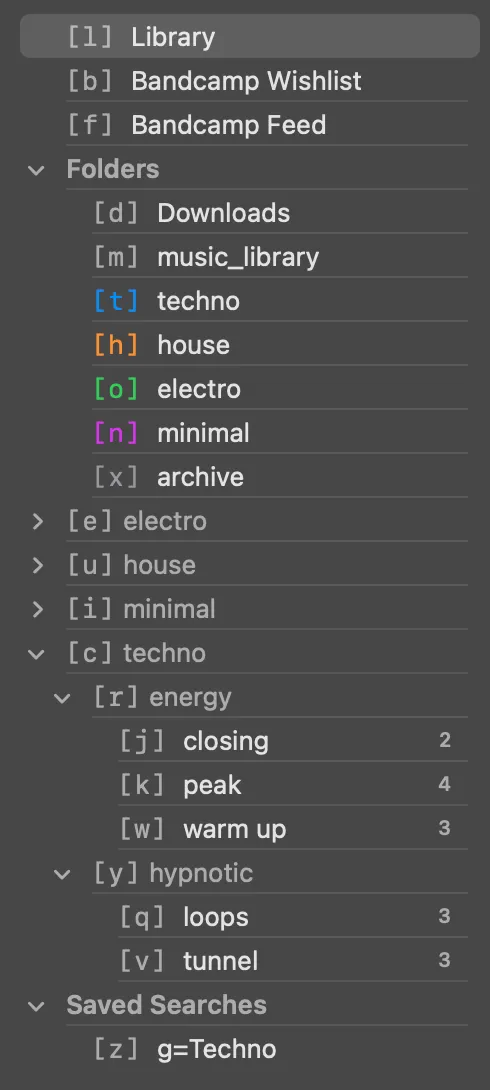
Open a folder or playlist
Section titled “Open a folder or playlist”Click a row in the sidebar, or walk the sidebar from the keyboard. Each row you step onto opens in the track list.
| Key | What it does |
|---|---|
| ↑ / ↓ or [ / ] | Step to the previous or next row in the sidebar |
| ← / → | Fold or unfold a section or playlist folder |
The Mac window describes each section of the sidebar.
The sidebar is a drawer. Open it and tap a folder or playlist. A hardware keyboard walks it with the same keys as the Mac.
Jump anywhere by its mark
Section titled “Jump anywhere by its mark”Folders, playlists, playlist folders and saved searches each have a mark, shown beside the name in the sidebar. To go there, press ’, type the mark and press Enter. The list that opens as you type matches names too, so you can also type part of a name and pick the place from the list.
Where a jump lands
Section titled “Where a jump lands”A folder opens with the tracks of its subfolders. A playlist folder opens every track in the playlists beneath it, each once. A saved search opens its folder or playlist with the query in the search bar. The Library opens every track apart from those in archive folders and folders set to Exclude from library.
Move through the track list
Section titled “Move through the track list”The row the cursor is on is the current track. Most keys act on it when no selection is open, and it need not be the playing track.
| Key | What it does |
|---|---|
| j / k | Down or up one row. A number first repeats it, as in 3j |
| gg / Shift+G | Top or bottom of the list |
| 5gg | Line 5 |
| Ctrl+D / Ctrl+U | Half a page down or up |
| Space | Play or pause the current track |
The arrow keys belong to the sidebar, so the list moves with j and k.
Get back to the playing track
Section titled “Get back to the playing track”Press gp. If the playing track is in the list on screen, the cursor goes to it. If it is not, Proper opens the folder or playlist the track was started from and lands on it there.
Go back to where you were
Section titled “Go back to where you were”Ctrl+O goes back through the folders and playlists you have visited, and Ctrl+I goes forward again. A search you had up comes back with its view, and a place that no longer exists is skipped. On the iPhone, the back and forward arrows at the top of the drawer do the same.
Sort the list
Section titled “Sort the list”Press s and a field key to sort ascending, or Shift+S and the key to sort descending. sa sorts by artist and sb by BPM, and Keys lists the other fields. sx clears the sort. On the Mac you can also click a column header, and on the iPhone you tap the sort button at the top of the list.
A sort stays as you move between folders until you quit. The Default sort field setting chooses the order folders open in. se sorts by your decisions, which is how you review them before a commit, as Sorting files shows.
Select several tracks at once
Section titled “Select several tracks at once”A selection is a group of tracks that the next action applies to, such as a mark, a tag edit or an add to a playlist.
| Key | What it does |
|---|---|
| Shift+V | Start a selection, then extend it with j and k |
| va | Select every track by the current track’s artist |
| vt or Cmd+A | Select every track in the view |
| gv | Bring back the last selection |
| Escape | End the selection |
An action ends the selection once it has run, and so does opening another view. With a selection open, n and p play the next and previous selected track.
On the iPhone, choose Select in the list’s … menu, then tap rows to tick them. A bar above the player acts on the ticked tracks. Keep selection after action in Device Settings keeps the selection open after an action.
Where the app opens
Section titled “Where the app opens”The app opens the place you were last in, on the Mac and the iPhone. If that place is gone, it opens the first folder in your Settings that exists on this device, or the Library if none does. A folder on a drive that is not connected is tried again at the next launch.