Marks and folders
This page covers marks and the settings a folder can have. To use them step by step, see Sorting files and Moving around.
What a mark is
Section titled “What a mark is”A mark is a short name, usually one or two letters, that stands for a folder, a playlist, a playlist folder, a saved search, the Library or a Bandcamp list. The sidebar shows each place’s mark beside its name, and case does not matter, so T and t are one mark.
You type a mark after one of three keys and press Enter. After m, a folder’s mark marks the current track for that folder, which files the track to be moved there when you commit, as Sorting files describes.
| Key | What the mark does |
|---|---|
| ’ or ` | Opens the place |
| m | Marks the current track for a folder, or adds it to a playlist |
| “ | Pins the Playlist Visualizer on a playlist or playlist folder |
How marks are given out
Section titled “How marks are given out”You set a folder’s mark with Mark in its settings. It can be longer than two letters, and a mark you set never changes. Two folders cannot share a mark, and the settings refuse the second. Every other mark is made by the app, the same way on the Mac and the iPhone.
| Place | Where its mark comes from |
|---|---|
| A folder | Mark in the folder’s settings. Left empty, one is made from the folder’s name |
| The Library | Made from the name “Library”, or set in Settings |
| Bandcamp Wishlist | Made from the name “Bandcamp”, so b while it is free, or set in Settings |
| Bandcamp Feed | Made from the name “Feed”, so f while it is free, or set in Settings |
| A playlist folder | Made from its name |
| A playlist | Made from its name |
| A saved search | Made from its query, as Configuration describes |
The app gives the marks out in this order.
- The folder marks you set.
- The Library, then Bandcamp Wishlist, then Bandcamp Feed.
- Folders with no mark set, in the order of your folder list.
- Playlist folders, outermost first. When a nested folder wants the same letter as an outer one, the outer folder keeps it.
- Playlists.
- Saved searches, last.
Each place takes the first letter of its name that is free. If none is, it takes a pair of letters from its name, then any free letter, then any free pair. While letters last, the app avoids a mark that is the start of another, so b and be are not given out together. A mark the app makes is therefore one letter, or two once the single letters run out. Because the app works the marks out again whenever the library changes, adding or renaming a playlist can change the mark of a place given out after it.
The Bandcamp lists appear only on a device signed in to Bandcamp, but their letters stay taken on every device, so signing in or out never changes another place’s mark.
Archived playlists, History playlists and playlist folders whose playlists are all archived have no mark. Neither does a playlist group, whose playlist carries the mark that opens it, or a place left with no free letter. To open a History playlist, type part of its name after ’, or pick it in the sidebar.
The mark list and the target picker
Section titled “The mark list and the target picker”After ‘, m or “, a list opens over the track list with the places that match what you have typed. After ’ it lists every place you can open, History playlists included. After m it lists folders and playlists, and after ” playlists and playlist folders.
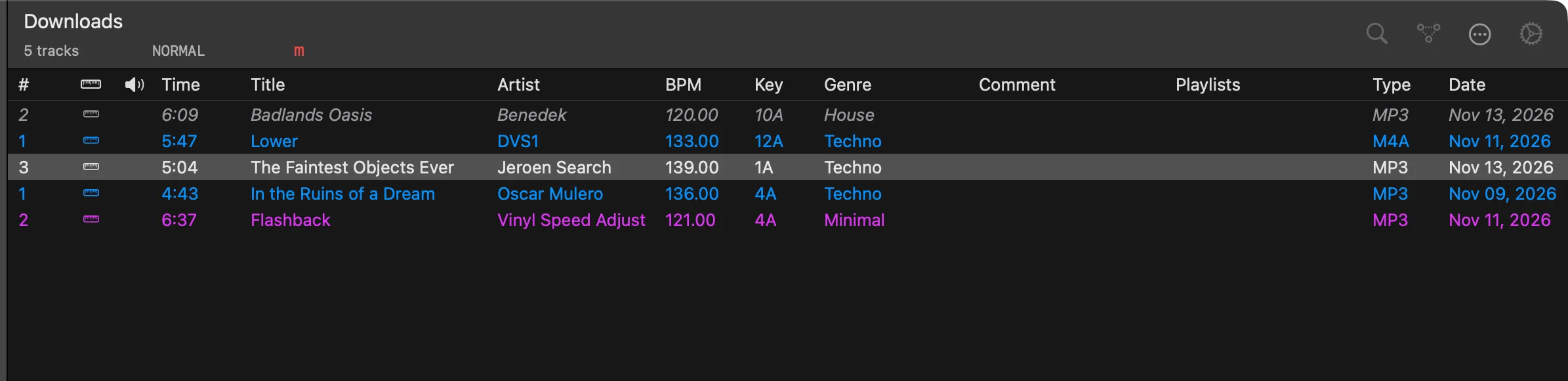
The list matches names as well as marks, so ber finds both the mark be and a playlist named berlin, and a saved search also matches the words of its query. A place whose mark is exactly what you typed comes first. Case and accents are ignored, as in a search.
| Key | What it does |
|---|---|
| Ctrl+N / Ctrl+P, or the arrow keys | Move the highlight |
| Enter | Take the highlighted place. If you have not moved the highlight, take the place whose mark you typed exactly, or else the best match |
| Escape | Cancel |
A pause longer than the Multi-key timeout setting cancels too. After m, Enter with nothing typed takes the top suggestion.
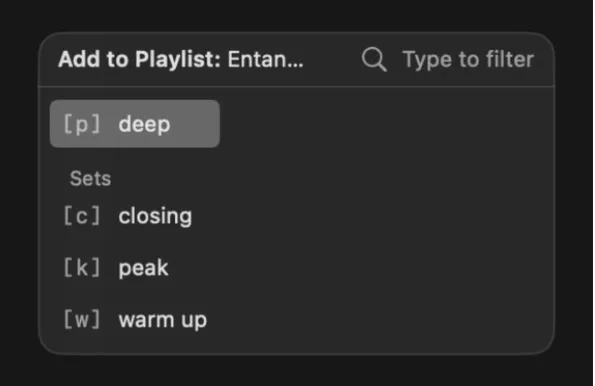
On the Mac, Mark… and Add to Playlist… in the row menu and the playback bar open the target picker instead, a grid of every folder or every playlist that has a mark. Its header names the track, or the number of tracks, a pick acts on. From the row menu a pick acts on the current track or the selection, and from the playback bar on the track that was playing when the picker opened. Type a mark or part of a name to filter the grid, move the highlight with the arrow keys, and press Enter or click a cell to choose. Escape closes it.
Folder settings
Section titled “Folder settings”Each folder in Settings has a name, a path, a mark and a color, and the switches below. The color is the color of tracks marked for the folder. The keys behind these settings are on the Configuration page.
When folders are nested, a setting covers the folder’s subfolders too. Where a staging folder or Hide tracks not downloaded differs between a folder and one inside it, the innermost folder decides.
Staging folder
Section titled “Staging folder”A staging folder is where new files arrive to be sorted, such as your Downloads folder. It has nothing to do with staging a track for deletion. Every folder that is not a staging folder counts as a folder you have sorted. Library Health never treats a file that leaves a staging folder as lost.
A commit that moves or deletes at least the Confirmation threshold of tracks, 10 by default, can ask you first. The table shows when.
| Commit | Asks when |
|---|---|
| Move | It moves at least the threshold of tracks, and either the folder on screen or the folder a marked file sits in is a folder you have sorted. The second case covers a move from a playlist |
| Delete | It deletes at least the threshold of tracks, and the folder on screen is a folder you have sorted |
| Remove from a playlist, clear, undo, redo | Never |
Archive
Section titled “Archive”An archive folder holds tracks you no longer play. Its tracks stay out of the Library and are never written to an external drive.
Moving a track into an archive folder also takes it out of every playlist except archived and History playlists, and erases its waveforms to save space. Its beat grid, key and cues stay. Undo brings back the file and its playlists, but not the waveforms. If you move the track out again, the next analysis or drive export rebuilds them.
Exclude from library
Section titled “Exclude from library”The folder’s tracks stay out of the Library and out of searches run from a parent folder. You can still open the folder and search inside it, and a playlist still lists its tracks.
Hide tracks not downloaded
Section titled “Hide tracks not downloaded”The folder’s view leaves out tracks whose files are in iCloud but not downloaded to this device, and so do searches run there. A track stays in the list while it is marked, staged or playing.
The switch syncs, but what is downloaded differs per device, so one folder can show fewer tracks on the iPhone than on the Mac. The number beside the folder in the sidebar still counts the tracks it hides. Playlists and the Library show every track, with a cloud on the ones not downloaded, and drive exports include them. To see a hidden track, download it in Finder or Files, as iCloud sync describes, or turn the switch off.
Analyze tracks
Section titled “Analyze tracks”On by default. Turned off, the folder’s tracks hold no analysis, beat grid, key or cues, and are left off external drives, which suits DJ mixes. Turning it off, or moving a track into such a folder, deletes what the tracks already held on every device. A subfolder cannot turn analysis back on. Analysis has the details.
Bandcamp downloads
Section titled “Bandcamp downloads”The folder that Bandcamp purchases download to on the Mac. Only one folder can have it, and with none set, purchases go to your Downloads folder. See Bandcamp.
Changing a folder
Section titled “Changing a folder”Renaming a folder or giving it another mark keeps the tracks marked for it. Removing a folder from Settings, or changing its path, clears the marks for it, and a message says so. Removing a folder leaves the folder and its files on disk.
On the iPhone, a folder only the Mac can reach is listed in Settings but not in the sidebar, and marking a track for it is refused.