Bandcamp
Proper shows your Bandcamp wishlist and your feed of new releases as track lists, so you listen through them with the keys you use on your own music. On the Mac you can also buy releases and have them download into your music folders.
Sign in
Section titled “Sign in”Open Settings, find the Bandcamp group and choose Sign In…. Bandcamp’s own login page opens inside Proper; sign in there as on the website. Proper never sees your password.
The session Bandcamp gives back when you sign in is kept in this device’s Keychain and does not sync, which is why each device signs in on its own. The wishlist and the feed appear in the sidebar only while the device is signed in. Sign Out, in the same group, deletes the session.
When Bandcamp cannot be reached, the app says “Bandcamp can’t be reached. Trying again” and tries again by itself. When Bandcamp ends the session, the app says “Bandcamp session ended”, and you sign in again.
Listen through your wishlist
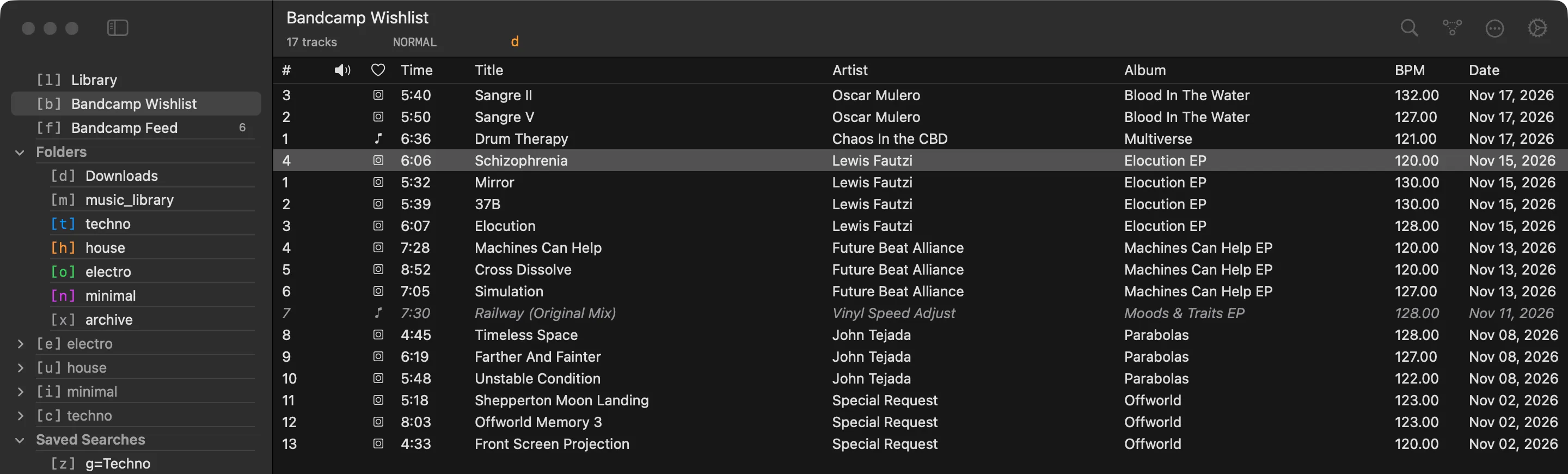
Section titled “Listen through your wishlist”Bandcamp Wishlist sits under Library in the sidebar. Click it, or press ’, b, Enter. Its mark is b unless a folder already has it; set another with bandcamp_wishlist_mark in Configuration. The list holds every track of every release on your wishlist, newest first.
What holds for every Bandcamp row, on the wishlist and in the feed:
- The tracks stream from Bandcamp at its preview quality, MP3 at 128 kbps.
- Playback, shuffle, the play queue, search and sort work as in a folder.
- A Bandcamp row is not a file in your library. Marks, playlists, tag edits, analysis and cues do not apply to it.
- The column under the heart shows how a track is on your wishlist. A disc in a square is a track wishlisted as part of an album, and a note is a track wishlisted on its own. In the feed the column marks the tracks already on your wishlist.
- Show in Bandcamp in the row menu opens the release page in your browser. Cmd+F does the same. A track wishlisted on its own opens its album’s page when it has one.
Take things off your wishlist
Section titled “Take things off your wishlist”Removing works like staging tracks for deletion: stage the rows, then commit. Nothing reaches Bandcamp until you commit.
| Key | What it does |
|---|---|
| d or w | Stage the track for removal, or unstage it |
| Shift+W | Stage every track of the row’s release |
| Shift+D | Take every staged row off the wishlist |
| Shift+C | Clear every staging |
| Cmd+Z | Undo a staging, or everything one Shift+D did |
Stagings are kept when you quit, and they show on your other devices signed in to the same Bandcamp account. When the wishlist is read again, the stagings of items no longer on it are dropped.
Bandcamp wishlists a whole album as one item. Taking one of its tracks off the wishlist takes the album off and wishlists its other tracks as single tracks, so they stay on the list. Staging every track of an album, which Shift+W does in one press, takes the album off whole.
Catch up on new releases in the feed
Section titled “Catch up on new releases in the feed”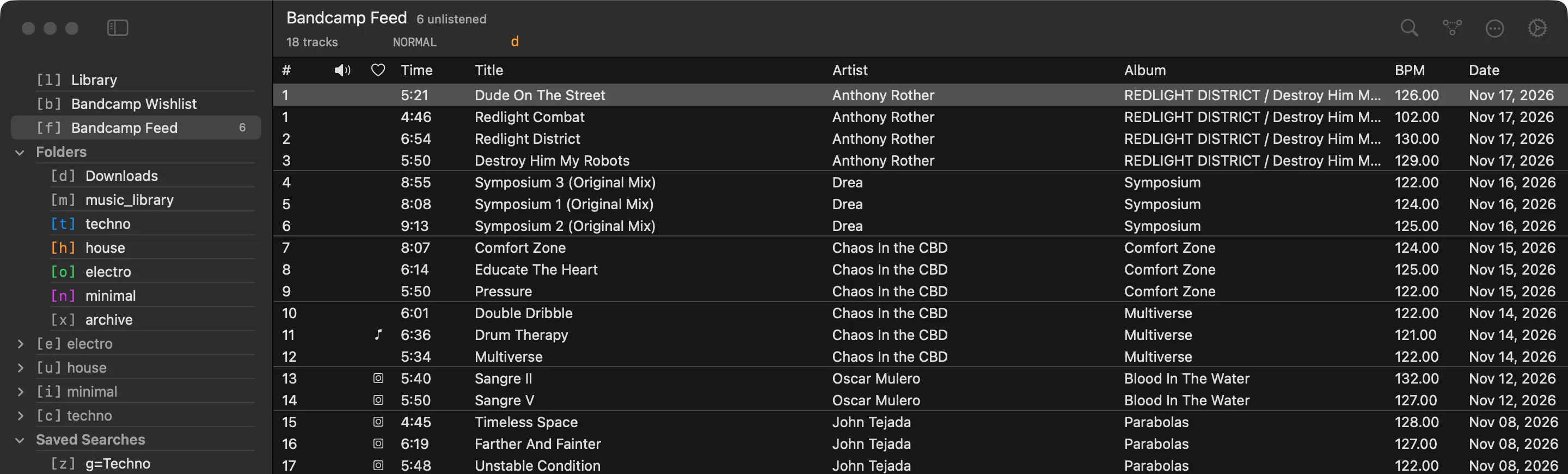
Bandcamp Feed sits under the wishlist, and ’, f, Enter jumps there. Its mark is f unless something already has it; set another with bandcamp_feed_mark in Configuration. It lists new releases from the artists and labels you follow on Bandcamp, newest first, with a line after each release. The sidebar row, and the list’s title, show how many releases you have not listened to yet.
| Key | What it does |
|---|---|
| d | Stage the release as listened, or unstage it |
| Shift+D | Commit the staged listened changes |
| Shift+C | Clear every staging |
| Ctrl+D / Ctrl+U | Next or previous release, instead of half a page |
| w | Add the track to your wishlist, or take it off |
| Shift+W | Add the whole release to your wishlist, or take it off |
| u | Show or hide listened releases |
Listened is kept per release, and once committed a listened release leaves the list. Which releases you have listened to syncs between your devices, along with the rest of your library. w and Shift+W change your wishlist at once, with no staging.
Each device reads the feed every hour while the app runs. Ctrl+S with the feed open reads it at once. Once a day each device also reads the pages of the artists and labels you follow, for the releases Bandcamp’s feed leaves out. Every release any device finds shows on all of them.
The first read on your account counts everything already in the feed as listened, so only releases that come out after it show as new. A preorder joins the feed on the day it goes live. A release with no tracks of its own to list shows as one row.
Buy and download on the Mac
Section titled “Buy and download on the Mac”-
On the wishlist or in the feed, press c to add the row’s release to a Bandcamp cart. With a selection, every release the selection touches is added.
-
Press Cmd+B to open the cart’s checkout in a window of its own. Pay there as you would on Bandcamp’s site. Proper presses nothing in the checkout.
-
When the checkout reaches Bandcamp’s download page, Proper downloads every item on it. A Bandcamp Downloads dialog shows each item’s progress.
A name-your-price release goes into the cart at its minimum price, or at one dollar’s worth in its own currency when it has no minimum. A release priced over $50 is left out. This cart is separate from the one in your web browser. After the downloads, the wishlist is read again, so what you bought leaves it.
Downloads
Section titled “Downloads”| Rule | |
|---|---|
| Format | bandcamp_download_format, FLAC unless you change it. The formats you can choose are listed in Configuration |
| Folder | The folder marked bandcamp_downloads = true, or the Downloads folder in your home when no folder is marked. Only one folder can have it |
| Albums | An album arrives as a zip, which Proper unpacks into a folder named after the artist and album |
| Preorders | Nothing to download until the release day, when Bandcamp emails the link |
| Failures | A download that fails is tried once more the next time Proper starts |
On the iPhone
Section titled “On the iPhone”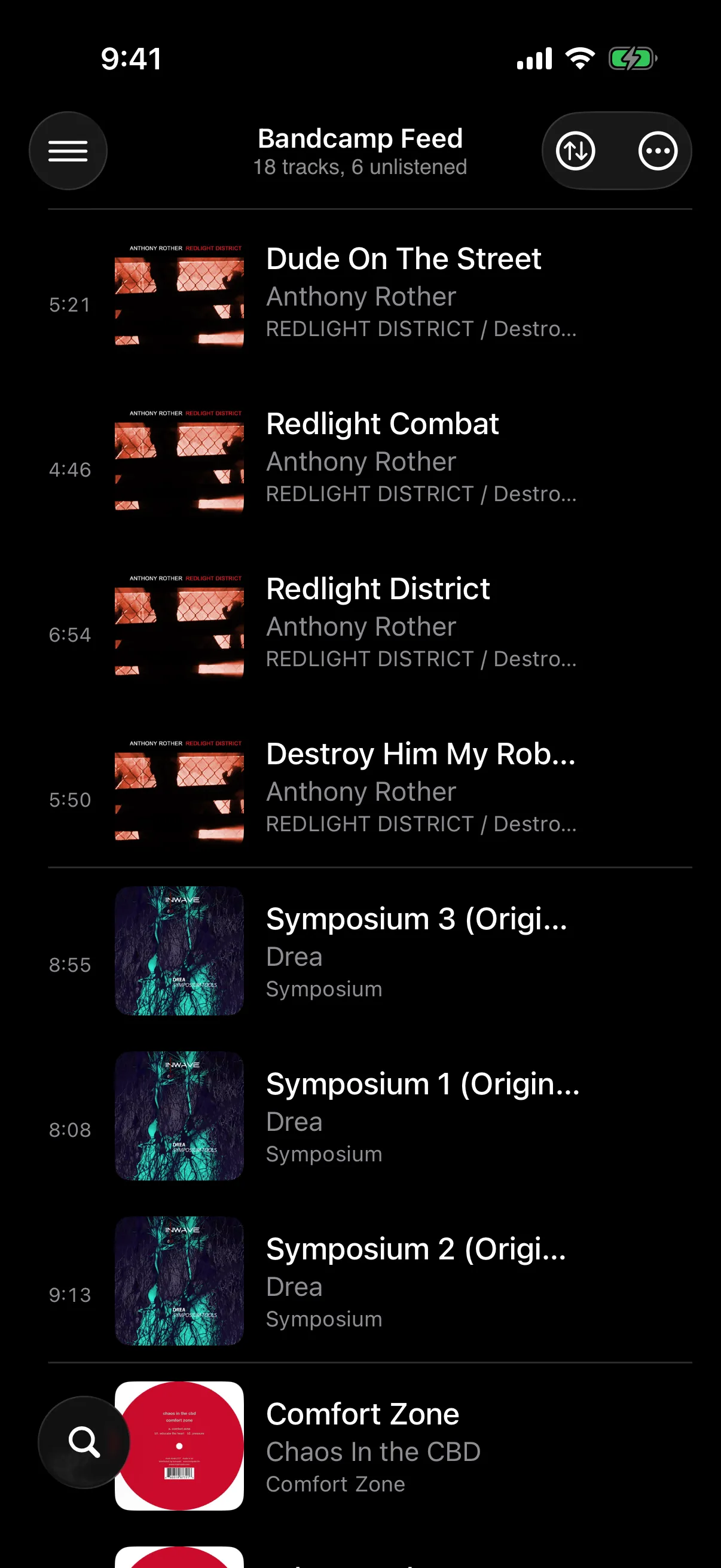
The iPhone has the wishlist and the feed, signed in the same way. It has no cart.
- On the wishlist, swipe a row left, or long-press it and choose Stage for Removal. Commit N Removals in the list’s … menu commits.
- In the feed, swipe a row left to stage its release as listened, and commit with Commit N Listened Changes in the … menu. Long-press a row to add the track or its release to your wishlist. Show Listened is in the same menu.
Quick Actions work on these lists too, so you can prune the wishlist with your AirPods. See Quick Actions on the iPhone.