Beat grids and cues
Once a track is analyzed you can check its beat grid, correct it by hand and set the cues you want on the decks. Grids, cues and loops go to your external drives, Rekordbox and your other device.
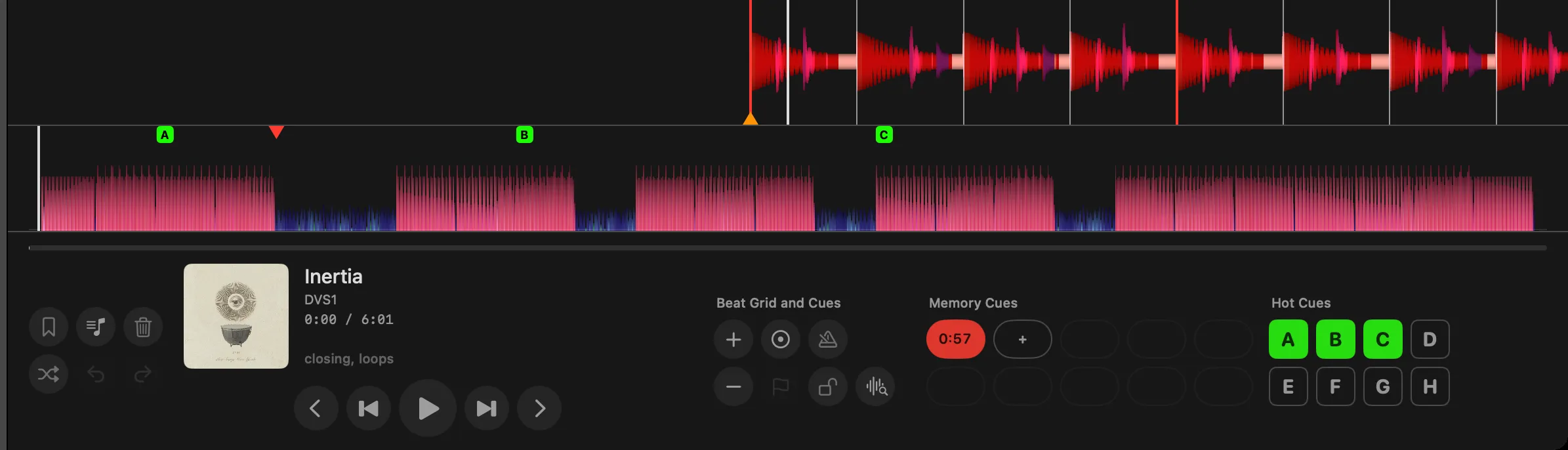
Check a grid by ear
Section titled “Check a grid by ear”- Play the track and press b to show the beat-grid view.
- Press Shift+M to turn the metronome on.
- Listen to the click against the kick drum. If the click is always a little early or late, nudge the grid.
- If the click drifts further off as the track plays, the tempo is wrong: set it.
- Play the track, open the player and tap the beat-grid icon under the waveform.
- Tap the metronome button.
- If the click is always a little early or late, tap - or + to nudge the grid.
- If the click drifts further off as the track plays, the tempo is wrong: set the BPM with Edit… in the player’s … menu.
The metronome clicks on the grid’s beats. It stays on from track to track, and is off each time the app starts.
Nudge it or set the tempo
Section titled “Nudge it or set the tempo”A beat grid has one fixed tempo, measured to the hundredth of a BPM, and the time of a downbeat.
| Key | What it does |
|---|---|
| Shift+< | Nudge the whole grid 5 ms earlier |
| Shift+> | Nudge it 5 ms later |
| c b | Type a BPM, from 20 to 300, and rebuild the grid at that tempo |
A count nudges further, so 4 Shift+> moves the grid 20 ms. c b works on the current track or the selection, and makes a grid where there is none.
When a grid changes, by a nudge, a new tempo or a re-analysis, cues on its beats move with them, and a cue placed between beats keeps its time.
Set where bar 1 starts
Section titled “Set where bar 1 starts”When the beats are right but the red bar lines fall on the wrong beat:
- Play to the first beat of a bar and press e to set the CUE point there.
- Press Shift+B. The CUE point becomes beat 1, and the bar lines move to match.
On the iPhone, tap CUE and then Set Bar Start, the flag button.
Lock it
Section titled “Lock it”Once a grid is right, press Ctrl+L to lock the grid of the current track or of every track in the selection, and press it again to unlock. In the iPhone player, tap Lock Grid. A padlock replaces the ruler in the grid column.
A locked grid cannot be re-analyzed, nudged, given a new BPM or moved with Shift+B, and a Rekordbox import does not overwrite it. It still exports, and you can still edit its cues.
Set the cue point and memory cues
Section titled “Set the cue point and memory cues”The CUE point works like a CDJ’s cue. It starts on beat 1 and stays where you put it until you quit. It is not saved or exported, so save the ones you want to keep as memory cues with Shift+E.
| Key | What it does |
|---|---|
| e | Set the CUE point, playing or stopped |
| o | While playing, go back to the CUE point and pause. While stopped, set the CUE point at the playhead |
| Shift+E | Save a memory cue at the CUE point |
| Shift+I / Shift+O | Jump to the next or previous memory cue |
| w | Delete the memory cue at the playhead, or else the one at the CUE point |
On the iPhone, tap the player’s CUE button to set the CUE point, and long-press it to go back to it. You can set up to ten memory cues on a track yourself. A track whose cues come in from Rekordbox or a CDJ keeps every one of them, even past ten.
Set hot cues, colors and loops
Section titled “Set hot cues, colors and loops”Ctrl+1 to Ctrl+8 set hot cues A to H at the playhead, or jump to one already set. A hot cue key never overwrites a set slot. To move a hot cue, delete it and set it again.
A cue’s color and loop are set in its panel. On the iPhone, long-press a hot cue pad.
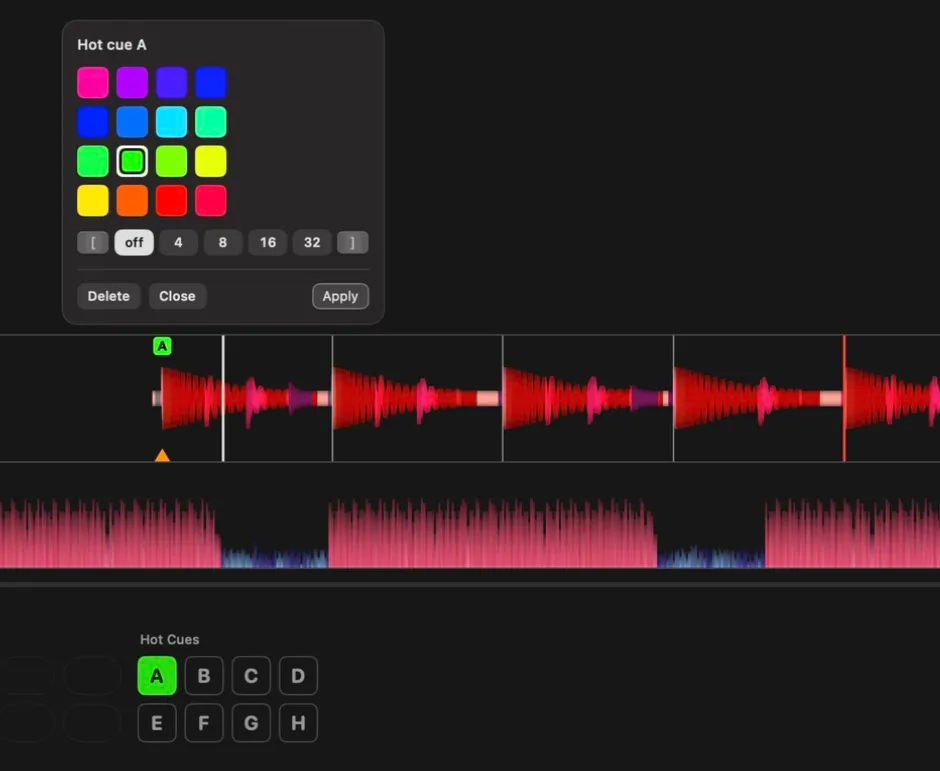
- Ctrl+Option+1 to Ctrl+Option+8 open hot cue A to H’s panel, setting the cue first when the slot is empty.
- Ctrl+Option+E opens the panel of the memory cue at the playhead, else the one at the CUE point, setting one there when there is none.
| Key | Hot cue panel | Memory cue panel |
|---|---|---|
| h j k l | Pick one of Rekordbox’s sixteen colors, which you can also click | |
| [ / ] | Halve or double the loop, like a CDJ’s 1/2X and 2X | The same |
| a | Make the loop active, so the player engages it when it gets there | |
| Enter | Apply | Apply |
| Delete | Delete the cue | Delete the cue |
| Escape | Close without changing anything, taking back a cue the panel’s key placed | The same |
Loops are off, 4, 8, 16 or 32 beats. The memory cue panel has the loop lengths but no colors.
What the grid and cue keys need
Section titled “What the grid and cue keys need”The cue keys, the nudge keys and Shift+B act on the playing track, which needs a beat grid. e, o, the nudge keys and Shift+B also need the beat-grid view up; the memory cue and hot cue keys do not. Cues are placed on the beat nearest the playhead, as a CDJ does with Quantize on.
When a key cannot act, the status pill says why in red.
| Message | Why |
|---|---|
| Nothing playing | No track is loaded on the player |
| Analyze the track first | The playing track has never been analyzed |
| No beat grid for this track | The playing track was analyzed but has no beat grid |
| Analysis downloading | On the iPhone, the track’s analysis is still coming down from iCloud |
| Analysis waits for a network | On the iPhone, the track’s analysis is in iCloud and there is no network to download it |
| Switch to the beat-grid view | The key needs the beat-grid view up |
| Beat grid is locked | The key would change a locked grid |
| Memory cue limit is 10 | The track already holds ten memory cues |
A track in a folder with Analyze tracks switched off refuses every one of these keys, as Analysis explains.
Cues you change at a CDJ come back on the next drive sync, as External drives for CDJs describes.