Backups and restore
A backup is one file holding everything the library holds: playlists and what is in them, folders and playlist groups, cues, beat grids and their locks, analysis, keys, every track’s tags as the library records them, and the settings. It holds no audio. This page shows how to take one, how to put one back, and what to do if Proper cannot open the library.
Take a backup
Section titled “Take a backup”Press Ctrl+B to open Drives and Backups, then press b for Back Up Now. The status line says where the backup went.
Open Drives and Backups from the sidebar drawer and tap Back Up Now.
Before it writes, a backup checks that there is room for the library plus a margin. If there is not, it first deletes older backups that would be pruned anyway. If that is still not enough, it refuses with “Not enough space”, naming the space it needs and the space that is free.
Automatic backups
Section titled “Automatic backups”Proper takes a backup on its own before every risky step. Each backup is labeled with what took it.
| Label | Taken |
|---|---|
| Manual | When you choose Back Up Now |
| Before a restore | Before a restore replaces the library |
| Before a repair | Before Library Health repairs |
| Before starting empty | Before Start Empty clears the library (see iCloud sync) |
| Before a drive sync | Before a sync writes an external drive |
| Before a Rekordbox import | Before the Rekordbox XML import writes |
| Before a Rekordbox export | Before the Mac’s export to Rekordbox |
| Before an analysis prune | Before analysis is removed from tracks in a folder whose analysis is turned off |
Backups made by older versions of Proper may be labeled Export, Daily or On quit.
If an automatic backup fails, the step it protects does not run. The one exception is a drive sync refused for room, which asks whether to sync without a backup.
Where backups are kept, and how many
Section titled “Where backups are kept, and how many”| Mac | iPhone | |
|---|---|---|
| Folder | ~/Library/Application Support/Proper/backups, or the folder set by backup_dir |
The app’s own storage |
| Kept | The newest 5 | The newest 2 |
Whatever the count, some backups are never pruned. These are the newest backup of all, the newest Manual, Before a restore, Before a repair and Before starting empty backup, and the backup the last restore was made from. The others go oldest first, so automatic backups never push out your newest manual one.
Restore a backup
Section titled “Restore a backup”A restore puts the library back as it was when the backup was taken.
- Press Ctrl+B to open Drives and Backups, then press r for Restore.
- Pick a backup and press Enter.
- Click Restore to confirm. Enter here answers Back, so a stray key cannot start a restore.
- If some files’ tags differ from the backup, Proper lists them. Press y to restore a file’s tags, n to keep them as they are, or a to restore all of them.
- Open Drives and Backups and tap Restore.
- Tap a backup, then confirm.
Each backup in the list shows when it was taken, such as “Today 14:32”, “Yesterday 09:10” or a date, what took it, and its size.
To undo a restore, restore the backup listed as Before a restore.
A restore runs in this order.
- It waits for pending writes and pauses iCloud sync.
- It takes a Before a restore backup.
- On the Mac, it writes back the tags of the files you chose to restore.
- It checks the backup, brings it up to date for this version of Proper, and puts it in place.
- It resumes sync where it stood.
If anything fails before step 4, the library is left as it was and the message says what was written.
If the library will not open
Section titled “If the library will not open”If Proper cannot open the library at launch, both apps show a recovery screen with your backups instead of the track list.
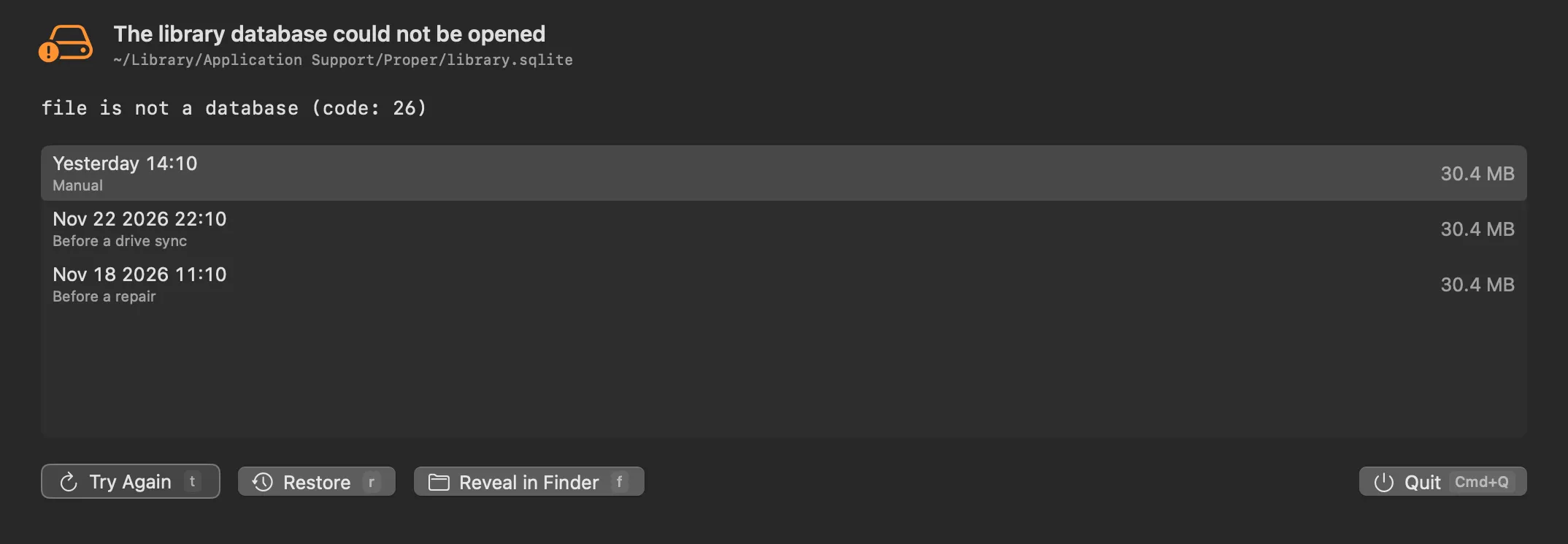
- Choose Try Again first. Most causes clear on their own.
- If it still fails, restore a backup. On the Mac, highlight it and press r; on the iPhone, tap it.
| Key | Button | What it does |
|---|---|---|
| j / k | Move the highlight between backups | |
| t | Try Again | Open the library again |
| r | Restore | Restore the highlighted backup in place. The file that would not open is kept beside it, and the screen names it |
| f | Reveal in Finder | Show the library file in Finder (Mac) |
| Cmd+Q | Quit | Quit (Mac) |
If the screen says “This library needs a newer version of Proper” or “This library came from another build of Proper”, the library is fine and nothing was changed. Install the current version of Proper. No restore is offered on that screen.
Details
Section titled “Details”Where each file is now, and any analysis newer than the backup’s, are kept from the current library. Only what the restore changed is sent through iCloud to your other devices.