The Mac window
The Mac app has one main window. The pictures on this page show a small demo library.
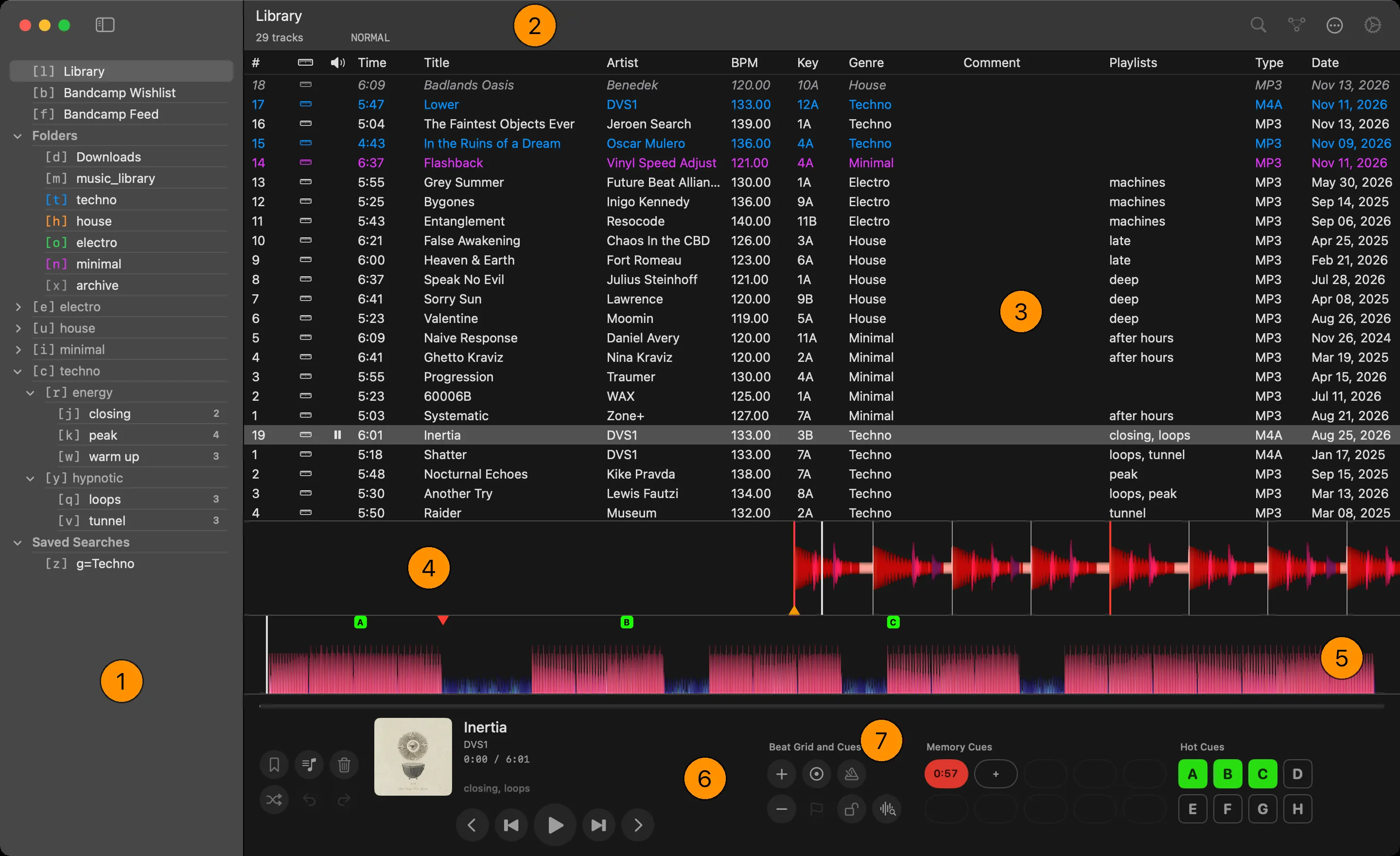
- The sidebar, with the Library, your folders, your playlists and your saved searches.
- The toolbar. The name of the place on screen, its track count and the mode are on the left, and the buttons are on the right.
- The track list.
- The beat-grid view of the playing track.
- The full-track waveform, with the track’s cues above it.
- The playback bar.
- The grid and cue panel.
The sidebar
Section titled “The sidebar”The sidebar lists the places you can open, in this order.
| Section | What it holds |
|---|---|
| Library | Every track, except those in archive folders and folders kept out of the Library |
| Bandcamp Wishlist, Bandcamp Feed | Shown while you are signed in to Bandcamp. The feed shows how many releases you have not listened to |
| Folders | The music folders from your Settings, each with its mark in the folder’s color |
| Playlists | Playlists that are in no playlist folder |
| One section per playlist folder | Each top-level playlist folder, with a stack icon on a playlist group |
| Saved Searches | Your saved searches, once you have any |
| History | Play histories imported from a CDJ drive, once you have any |
The number beside a place is how many tracks opening it lists. A folder leaves out a track whose file is gone from this Mac, and the Library and a playlist still list it with a warning sign.
Click a row, or walk the list with the arrow keys, to open a place. Every section starts open and every playlist folder starts folded, and a renamed folder keeps its fold. Archived playlists are left out of the sidebar and shown in the Playlist Manager.
The toolbar
Section titled “The toolbar”The top left names the place on screen and its track count. Beside the count is the mode, NORMAL, VISUAL or EDIT, followed by the keys of a command you are part way through. How the keys work explains the modes. A cloud with a count shows while iCloud sync is sending or receiving changes.
The buttons on the right open the search bar, the Playlist Visualizer, the … menu and Settings. The … menu holds Clear Marks and Staging, Commit Moves, Commit Deletions and Clear Play Queue, and Analyze N Tracks when the list has tracks that have not been analyzed. Analyze N Tracks analyzes those tracks whatever is selected. In the Bandcamp feed it holds only Show Listened or Hide Listened, and Clear Play Queue.
The track list
Section titled “The track list”Each row is one track, and the columns are the ones in fields in your configuration. When the window is too narrow, columns drop from the right end of that list. Click a column header to sort by it.

- The row number. The current track shows its place in the list, and the other rows count up and down from it.
- The grid column. A ruler means the track has a beat grid, and a padlock in its place means the grid is locked.
- The playing column. It shows a glyph on the playing track, a cloud on a file that is not downloaded to this Mac, and a warning triangle on a file that is missing.
- The tempo and the key, once the track has been analyzed.
- The playlists the track is in.
- A track staged for deletion is gray and italic. It is deleted when you commit.
- A track marked for a folder takes that folder’s color. In the picture, the blue rows are marked for techno and the purple row for minimal. They move there when you commit.
When files in the folder on screen are added, changed or deleted outside Proper, the list updates a moment later.
Ctrl+F turns full-field view on or off. In full-field view each row shows its long titles and comments in full, on as many lines as they need.
Click and drag rows
Section titled “Click and drag rows”| Mouse | What it does |
|---|---|
| Click a row | Move the cursor there |
| Shift-click | Extend the selection to the row |
| Cmd-click | Add the row to the selection, or take it out |
| Double-click a Title, Artist, Album, Comment, Genre or BPM cell | Edit that field in place |
| Double-click anywhere else in a row | Play or pause the track |
| Right-click or Ctrl-click | Open the row menu |
| Drag a row in a playlist | Move it, or the selection, to a new place in the playlist |
A click on a row while you are editing a field cancels the edit and does nothing else.
The row menu
Section titled “The row menu”The row menu acts on the row you opened it on, or on every selected track when that row is part of the selection. Its entries come in three groups.
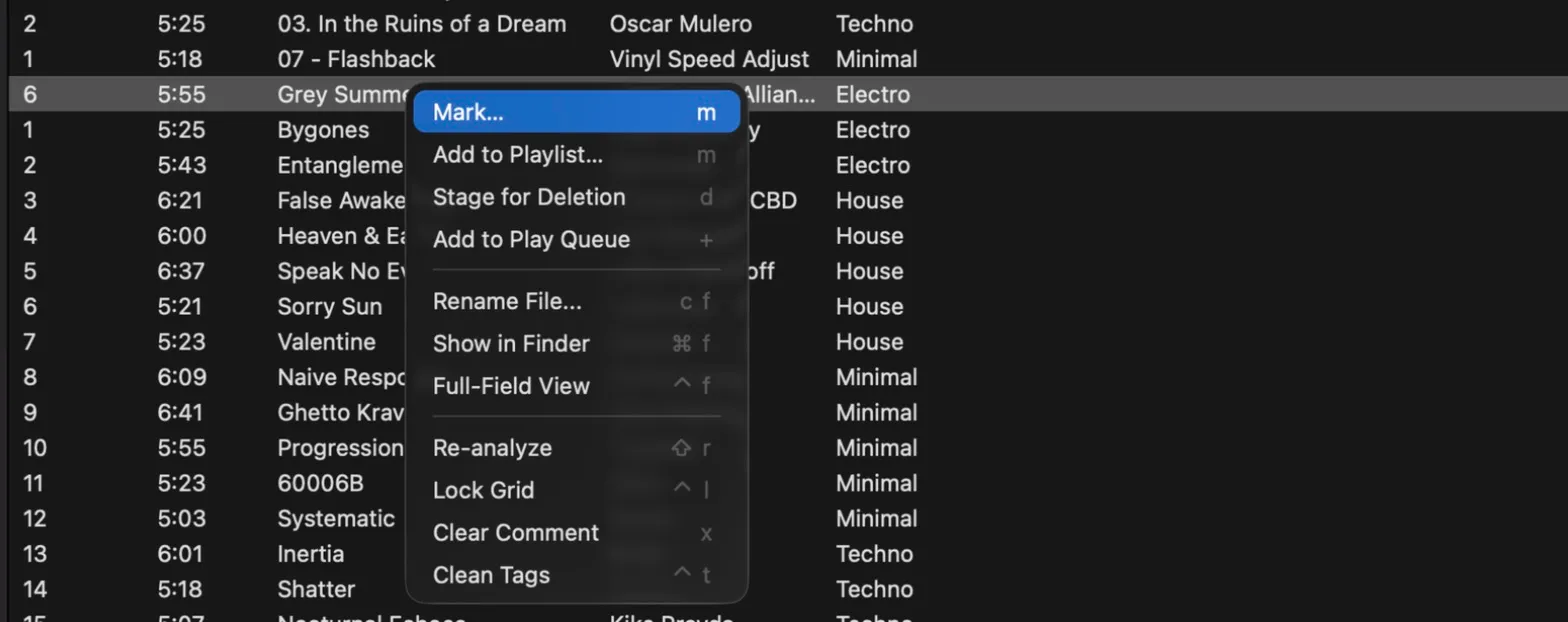
| Group | Entries |
|---|---|
| Filing | Mark…, Add to Playlist…, Stage for Deletion (in a playlist, Stage for Removal; on a staged track, Unstage), Remove from Playlist… in a playlist, Add to Play Queue |
| The file | Rename File… for one track, Show in Finder, Full-Field View |
| Analysis and tags | Analyze or Re-analyze, Lock Grid or Unlock Grid, Clear Comment, Clean Tags |
An entry appears only when it has something to act on. Mark… needs a folder that has a mark and Add to Playlist… a playlist that has one, and both open the target picker. Staging is left out in a playlist folder, where it would name neither a removal nor a deletion. When the selection holds both locked and unlocked grids, the menu offers both Lock Grid and Unlock Grid. On a Bandcamp row the menu holds that list’s own entries, which Bandcamp describes.
Each entry shows its key at the right, written as you type it. A letter is in lower case and modifiers are symbols, so Shift+R reads ⇧r. Pressing an entry’s key while the menu is open runs the entry. A single key or a chord, such as Ctrl+L, runs it at once. The first key of a sequence, or the m beside Mark… and Add to Playlist…, closes the menu and goes to the list, so you type the rest of the sequence or the mark as you would without the menu.
The search bar
Section titled “The search bar”The search bar opens across the top of the track list when you press / or click the magnifying glass, and the list filters as you type. See Searching.
The waveform strips
Section titled “The waveform strips”Two strips can sit over the playback bar once the playing track is analyzed. The beat-grid view scrolls the waveform under a fixed playhead, with the beat grid and cues on it, and the full-track waveform shows the whole track for seeking. See Analysis.
The playback bar
Section titled “The playback bar”The playback bar shows the playing track’s artwork, title, artist and time, with its comment and playlists below. A line too long for the bar scrolls sideways. Under the text are seek back, previous, play or pause, next and seek forward.
At the far left are Mark, Add to Playlist and Stage for Deletion, with shuffle, undo and redo under them. These three act on the playing track rather than the current track, and Mark and Add to Playlist open the target picker. See Playback.
The grid and cue panel
Section titled “The grid and cue panel”To the right of the playback bar is the grid and cue panel, with the beat-grid nudges, the CUE button, the metronome, the grid lock, Analyze, ten memory cue slots and eight hot cue pads. Click a set cue or pad to jump to it, and right-click it to edit or delete it. View > Toggle Grid and Cue Buttons hides or shows the panel, and the choice is kept. See Beat grids and cues.
The status pill
Section titled “The status pill”A pill over the bottom of the track list says in red when a key is refused or a step fails, and gives short confirmations in gray. A long analysis shows its progress there. Messages go away on their own.
The Playlist Visualizer pane
Section titled “The Playlist Visualizer pane”The Playlist Visualizer opens as a pane on the right, and you can drag its divider to resize it. See Playlist Visualizer.
The target picker
Section titled “The target picker”The target picker shows the folders or playlists that have a mark, in a grid, and its header names the track, or the number of tracks, a pick will act on. How to pick in it is in Marks and folders.
The menu bar
Section titled “The menu bar”The menu bar reaches the same commands as the keys. Edit holds undo, redo, the commits and the other list actions. View shows and hides the parts of the window, and Go opens search, the Playlist Manager and Drives and Backups. A menu item is refused wherever its key would be. It does nothing while you edit a field, while a dialog is open, or while a long operation, such as a drive sync, holds the screen.
The menu bar holds these items, beside the standard ones macOS adds.
| Menu | Holds |
|---|---|
| Proper | Settings…, Edit Config…, Sync Now |
| Edit | Undo, Redo, Clear Marks and Staging, Commit Moves, Commit Deletions, Repeat Last Action, Clean Tags, Clear Play Queue, Toggle Track on Wishlist, Toggle Release on Wishlist, Add to Cart, Show Bandcamp Cart |
| View | Toggle Sidebar, Toggle Playlist Visualizer, Toggle Waveform, Toggle Beat-Grid View, Toggle Grid and Cue Buttons, Toggle Full-Field View, Unpin Playlist Visualizer, Show in Finder |
| Go | Search, Command Mode, Save Search, Back, Forward, Go to Playing Track, Playlist Manager, Drives and Backups… |
| Help | Proper Help, Keyboard Shortcuts |
The menus show only the Command chords as shortcuts. Most commands are a plain key pressed in the track list, and Keys lists them all.
Settings
Section titled “Settings”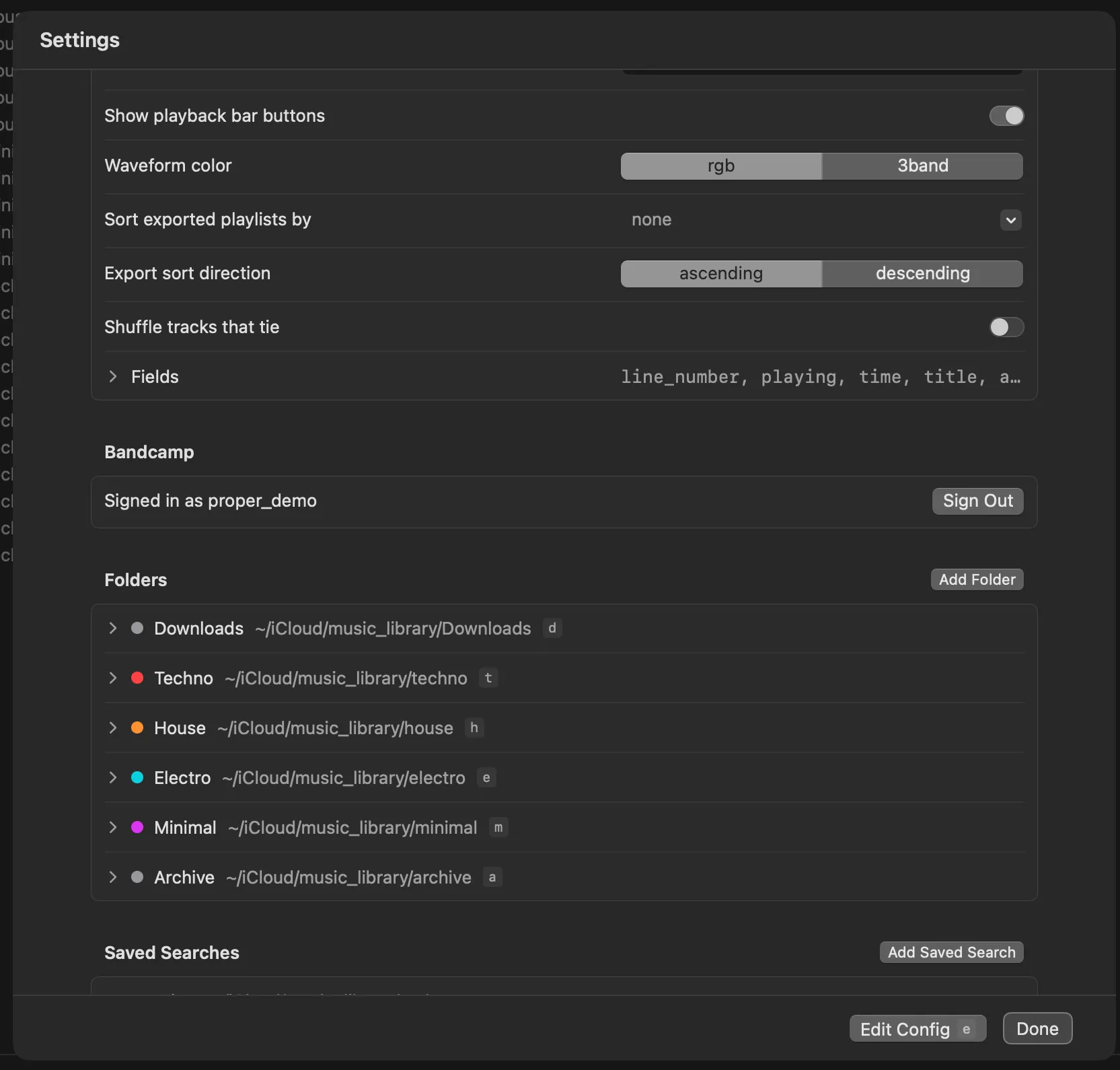
Cmd+, opens Settings, and so does the gear at the right of the toolbar. Each change is saved as you make it and reaches your other device through iCloud, except the Bandcamp sign-in. Cmd+Shift+, opens the same settings as a text file in your text editor, and e does the same while Settings is open. Configuration lists the groups of the form and describes every setting, with the CDJ ones in CDJ settings.
Ctrl+H opens this website in your browser, and so does Help > Proper Help. ? opens the keyboard legend, which works offline.
Sync Now
Section titled “Sync Now”Ctrl+S fetches iCloud changes now and reloads the config, and so does Proper > Sync Now. Proper fetches on its own as well. See iCloud sync.
Quitting
Section titled “Quitting”Cmd+Q quits. Marks and stagings are kept, and are there when you open the app again. Quitting is refused while a long operation, such as a drive sync, is running.
Move to a new Mac
Section titled “Move to a new Mac”- Set up the new Mac as in Add your other device. The library comes down from iCloud.
- Backups stay on the old Mac. To keep them, copy the
library-files from its backups folder into the same folder on the new Mac, where Restore lists them. Only the newest are kept, so the next automatic backup can prune older ones. Backups and restore gives the folder and the count. - Sign in to Bandcamp again on the new Mac, since the sign-in stays on each device.
- Uninstall Proper from the old Mac, as below.
Uninstall
Section titled “Uninstall”- Quit Proper. If you are signed in to Bandcamp, choose Sign Out first, since the sign-in is kept in the Keychain.
- Move Proper from Applications to the Trash.
- Delete what it keeps on this Mac:
~/Library/Application Support/Proper, which holds the library, the settings and the backups, then~/Library/Caches/Proper,~/Library/Caches/com.audiosort.app,~/Library/HTTPStorages/com.audiosort.app,~/Library/Logs/audiosortand~/Library/Preferences/com.audiosort.app.plist. Backups in a folder set bybackup_dirare not in there.
Your music files are not touched, and the library stays in iCloud for your other devices. On the iPhone, deleting the app deletes its copy of the library, and its backups with it.
To remove the library from iCloud as well, once no device uses it, delete Proper’s data from your iCloud storage: System Settings > Apple Account > iCloud, then Manage. A device that still runs Proper then asks whether to keep its library and upload it again, as iCloud sync describes.
When the config has errors
Section titled “When the config has errors”If there is no working config to run on, an error screen fills the window and lists the errors. Configuration describes its buttons.
A mistake in a config that was already working does not bring up this screen, because the app keeps running on the last config that worked, and the change is not sent to your other device. See Configuration.
Other screens
Section titled “Other screens”| Screen | How to open it | Read more |
|---|---|---|
| Drives and Backups, for backups, Library Health, external drives and Rekordbox | Ctrl+B, or Go > Drives and Backups… | External drives for CDJs, Backups and restore |
| The Playlist Manager | Ctrl+P, or Go > Playlist Manager | Playlists |
| The command line, for find and replace in comments | : | Editing tags and file names |
| The rename dialog | cf, or Rename File… in the row menu | Editing tags and file names |
The iPhone app has a page of its own, The iPhone app.
Details
Section titled “Details”The track list’s picture names the ruler, the padlock, the playing glyph, the cloud, the warning triangle, the gray italic row and the folder’s color. A trash can in the grid column, on an otherwise plain row, means the file is staged for deletion in its own folder, as Sorting files explains.