Quick Actions on the iPhone
Quick Actions let you decide about the playing track while the phone stays in your pocket. A triple-tap on your AirPods, a press of the Action Button or a button on the lock-screen card stages the track for deletion or files it to a destination you chose, and a sound in your ears tells you what happened. Nothing moves and nothing is deleted until you commit, on the phone or on the Mac.
Choose what a press does
Section titled “Choose what a press does”Under Library Quick Actions in Device Settings, each trigger has its own menu:
- Stage stages the playing track for deletion in a folder, or for removal in a playlist.
- Mark files it to your Destination. A playlist gets the track at once. A folder marks the track, and it moves there when you commit.
- Previous (Triple-tap) or Nothing (Action Button) leaves the trigger as iOS has it.
Pressing again takes back what the first press did, so a second press of Mark on a playlist takes the track out of it, even if the playlist held it before.
To choose the destination, tap Destination in the same group. It offers None, the folders that have a mark, and the playlists, grouped by playlist folder. Archived playlists are offered and History playlists are not, and renaming the destination keeps it.
| Group | Triple-tap | Action Button |
|---|---|---|
| Library Quick Actions | Previous (default), Stage, Mark | Nothing, Stage (default), Mark |
| Bandcamp Wishlist Quick Actions | Previous (default), Stage | Nothing, Stage (default) |
| Bandcamp Feed Quick Actions | Previous (default), Stage as Listened, Toggle Wishlist | Nothing, Stage as Listened (default), Toggle Wishlist |
Set up AirPods triple-tap
Section titled “Set up AirPods triple-tap”-
Open the drawer and tap the phone button, the first of the four at the top right, to open Device Settings.
-
Under Library Quick Actions, tap Triple-tap and choose Stage or Mark.
-
Play a track and press the stem of an AirPod three times.
Once Triple-tap runs an action, the lock screen’s rewind button runs it too, because iOS sends both as the same command.
Set up the Action Button
Section titled “Set up the Action Button”-
Open the iPhone’s Settings app, then Action Button. Swipe to Shortcut and choose Quick Action on Current Track from Proper.
-
In Proper’s Device Settings, under Library Quick Actions, check the choice for Action Button.
-
Press the Action Button while a track plays.
Use the lock-screen card
Section titled “Use the lock-screen card”While a track plays, a card on the lock screen holds a stage button and, once a destination is set, a destination button named Mark for a folder or Add to Playlist for a playlist. Each runs the same press as the Action Button. A button is lit when its state is on, meaning the track is staged, marked or in the playlist, and dimmed when its press would be refused.
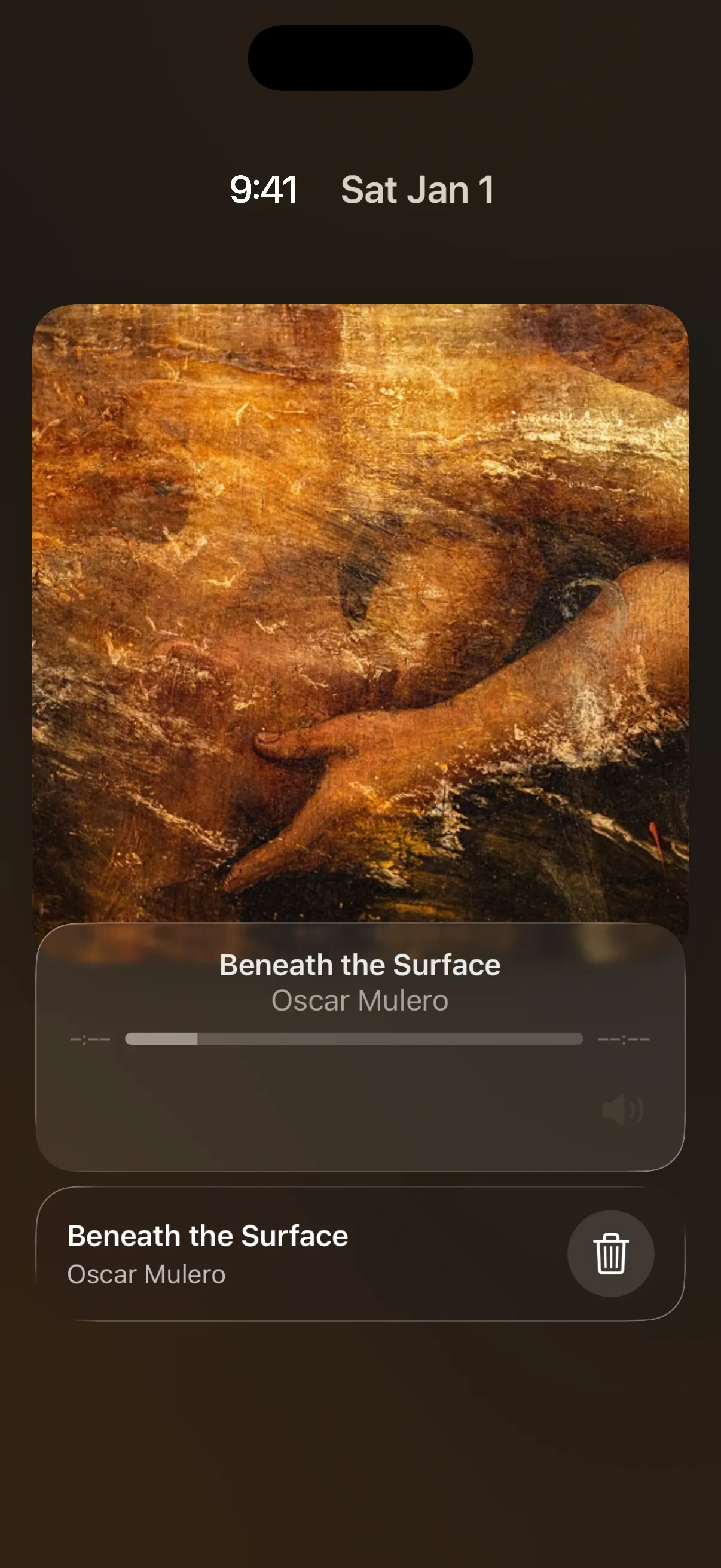
On a Bandcamp track the card holds that list’s own actions, whatever the triggers are set to. A feed track gets the listened staging and the wishlist, a wishlist track gets Stage for Removal, and neither gets a destination. To hide the card, turn off Lock screen card under Controls in Device Settings.
Quick Actions on the Bandcamp lists
Section titled “Quick Actions on the Bandcamp lists”While the phone is signed in to Bandcamp, Device Settings adds Bandcamp Wishlist Quick Actions and Bandcamp Feed Quick Actions. A press uses the group of the list the playing track came from, whatever is on screen.
On the wishlist, Stage stages the track for removal from your wishlist. In the feed, Stage as Listened stages the release as listened, to be committed later, and Toggle Wishlist adds the track to your wishlist or takes it off at once. See Bandcamp.
Sounds
Section titled “Sounds”A press plays a sound for its result, with a haptic, and you hear it in your AirPods with the screen locked. There are four, for staged, unstaged, marked and unmarked. Adding a track to a playlist or the wishlist plays the marked sound, and taking it off plays the unmarked one. A press that cannot run changes nothing and plays a short “no target” sound. The cases are listed under Details.
Details
Section titled “Details”A press is refused, with the “no target” sound, when:
| Press | Refused when |
|---|---|
| A staging or a folder mark | The playing track is not in the list on screen. Adding to a playlist works from any view |
| A staging | The list on screen is a playlist folder, where it would name neither a removal nor a deletion |
| Mark | No destination is set |
| Mark to a folder | The folder has no mark, or the playing track’s file is missing |
| Mark | The destination is gone from the library. The app says Destination invalid and clears the destination |
| A wishlist staging | The wishlist is not on screen. Feed presses work from any view |
| A playlist add, or a wishlist change | The add could not be written, or Bandcamp did not take the wishlist change |